
Appearance
Streaming
Playout provides a private live streaming solution powered by Mux. The video feed is protected by authentication — only signed-in users can access the stream, making it ideal for internal events and broadcasts that should not be publicly available.
WARNING
The Streaming feature can only be activated by the Playout team. Contact us at contact@playout.studio to get access.
Overview
When you open an event, the Streaming section appears in the sidebar (if enabled). It provides tools to start and stop your broadcast, monitor connected viewers, and manage VOD recordings.
Going Live
Open the event's Streaming page. Before you are live it shows a checklist of everything that has to be in place, checked against the real state of your event — not a list of instructions you have to match up yourself:
- Production unit — which unit this event streams through.
- Stream endpoint — whether that unit has somewhere for your encoder to send video.
- Stream key — ready to copy, below the list.
- Who can watch — your access rules, and whether the player is currently shown on the site.
- Encoder — waiting until your encoder connects.
Anything not yet done carries a button that takes you to where you fix it.
To go live, point your encoder (e.g. OBS) at the RTMPS ingest URL and stream key shown on the page, and start streaming. The event goes live on its own when the signal arrives — there is no Start button to press.
To end the broadcast, use Stop & save on the Streaming page and confirm. Stop your encoder as well: Playout cannot do that for you, and the confirmation says what happens if it keeps running.
WARNING
If you start your encoder and the page does not go live within a minute or so, the connection between Mux and Playout is not set up correctly for your organization. Contact us — it is not something you can fix from here.
The Streaming Workflow
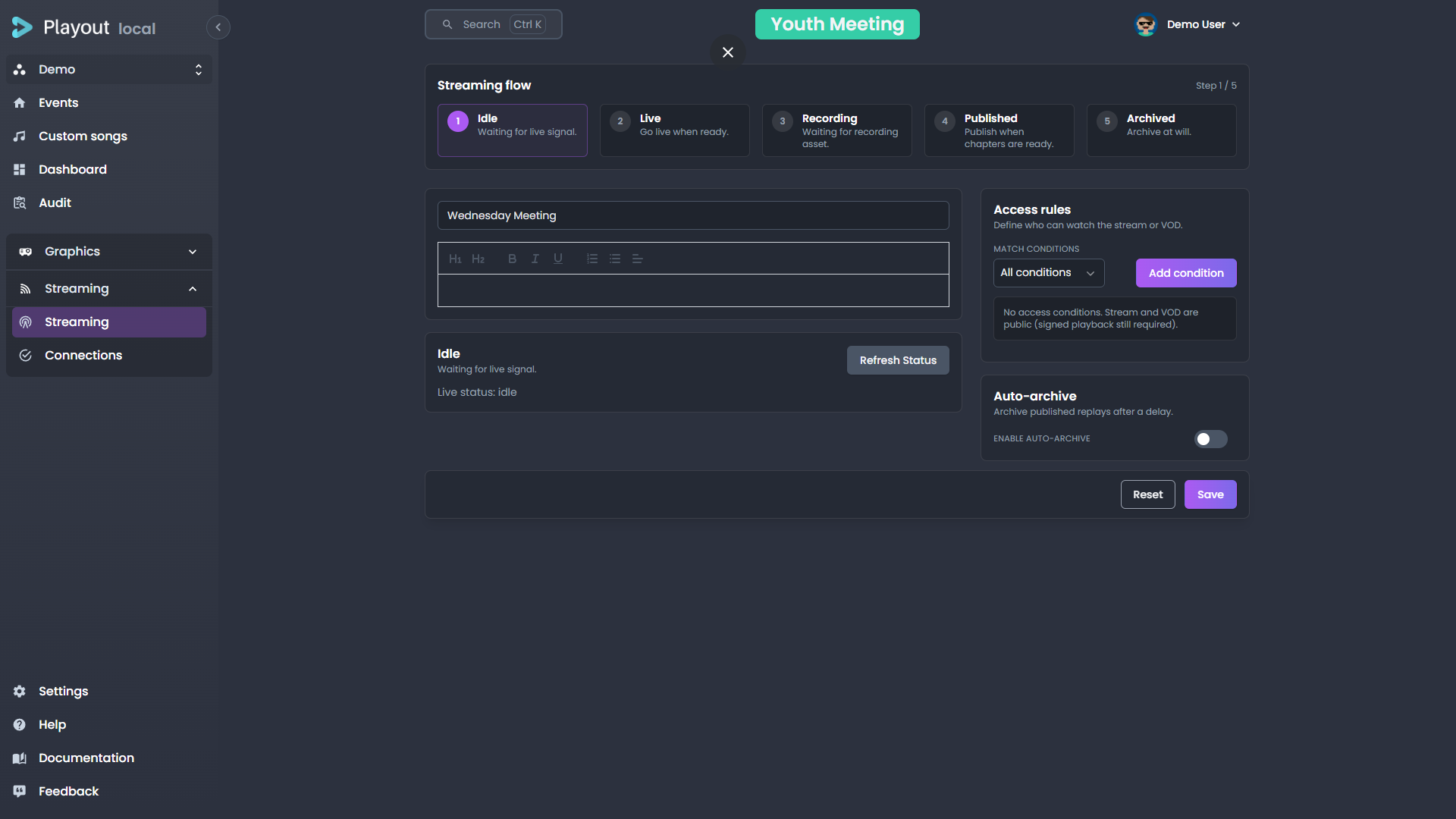
The Streaming page guides you through the life of a broadcast as a connected sequence of steps. A flow indicator across the top shows where the event currently is and what comes next; hover any step for a short description.
The stages are:
| Stage | What's happening |
|---|---|
| Idle | The event isn't live yet. Configure your stream settings and wait for your encoder's signal. |
| Live | The broadcast is on air. The page shows the player, a live status strip, and the chapter list. |
| Recording | The stream is being recorded for later replay. |
| VOD / Replay | The broadcast has ended and the recording is being prepared (and, once ready, published) as video-on-demand. |
| Archived | The event has been archived and removed from the active list. |
The main panel always reflects the current stage, so you only see the controls that are relevant right now.
Stream Settings
Access rules and the auto-archive policy are reached from the settings summary toolbar on the Streaming page, which shows the current configuration at a glance. Click it to open the settings dialog, where you can edit:
- Access rules — who is allowed to watch (see below)
- Auto-archive — whether and when the event archives itself automatically
- Title and description — shown to viewers of the stream and its replay
The dialog scrolls if you add many rules, so a long configuration stays manageable.
Access Rules
Access rules decide which authenticated viewers may watch the stream. A rule set is built from one or more conditions, combined with a match mode:
- Match all — a viewer must satisfy every condition.
- Match any — a viewer must satisfy at least one condition.
Each condition tests a property of the viewer:
| Field | Example use |
|---|---|
| Church | Restrict the stream to viewers from a specific church |
| Country | Restrict the stream to viewers in particular countries |
| Age | Restrict by the viewer's age |
Add conditions with the add action and remove them individually. With no conditions, any authenticated viewer can watch.
INFO
Access rules are one of the settings bundled into an event preset, so a tenant's standard access policy can be applied to every event at once.
Auto-Archive
Auto-archive moves an event's replay out of the active list automatically. Enable it and set a delay in days — the replay is archived that many days after it's published. Leave it disabled to archive events manually from the event dashboard.
Chapters
Chapters give viewers navigation points in the replay. Each one records a title and a timestamp, and they are marked while you are live, from the panel beside the player.
- Add a chapter — Use the Add chapter action below the list to mark the current point in the stream.
- Name a chapter — Type a title directly into the chapter's row.
- Remove a chapter — Use the delete action on the row.
Operators can mark and rename chapters, not only administrators — the person running the broadcast is usually the person who knows where the chapters go.
Automatic chapters
Playout can mark chapters for you from what your operators put on air, so nobody has to remember to do it mid-broadcast. A chapter opens — titled after the content — when a person's lowerthird, a song's lowerthird, or a playlist element goes live. Bible verses and info lowerthirds can be added as sources too.
Automatic chapters are marked Auto in the list. You can rename or delete them like any other; renaming one does not stop it being an automatic chapter.
Two settings keep the list readable, because an operator putting the same speaker back on air several times during one talk is normal:
- Shortest gap between chapters — anything on air sooner than this extends the current chapter rather than starting a new one.
- Ignore the same content for — a repeat of something already chaptered does not get a second one.
Turn it on under Settings → General, where the section appears once streaming is enabled for your organization. It only marks chapters while an event is live and recording.
TIP
Start with the defaults and look at the chapter list after one real service before changing them. What a good chapter list looks like depends a lot on how your services run.
Connections
The Connections tab shows a real-time view of connected viewers and devices.
Key information displayed:
- Number of connected viewers — shown as a card on the event dashboard and in detail here
- Connection status — whether each connected client is active and receiving the stream
Use this tab to verify that your stream is reaching its intended audience before and during a broadcast.
VOD & Replay
When an event ends, the recorded stream can be made available as a video-on-demand (VOD) asset:
- Once the broadcast stops, Playout begins processing the recording.
- When processing is complete, the recording appears on the Streaming page with a player, the chapter list and a timeline.
- Publish builds the replay and makes it available to viewers who pass your access rules.
Choosing what the replay contains
Chapters are not only navigation markers — they are also what decides which parts of the recording end up in the replay. Each chapter has a Keep switch, and anything you untick is cut out of the published replay.
This is why the switch lives here and not on the live chapter panel: the replay editor shows a running summary of what publishing will produce — "Replay: 20:00 of 30:00" — alongside a timeline where kept parts are coloured and discarded parts are grey. Publishing a replay that drops more than about a tenth of the recording asks you to confirm first, and says how much.
Leave everything ticked and the replay is the whole recording. Use it to cut the twenty minutes of countdown before the service starts, or a stretch that should not be public.
INFO
Archiving an event also archives its associated VOD asset. Archived events and replays can still be viewed but are removed from the active list.
Production Units & Streaming
Each event is tied to a production unit that determines which Mux stream endpoint is used. Production units are configured in Settings → Production Units.
If a production unit does not have a stream configured, a warning will appear on the settings page indicating how many units are missing stream configuration.